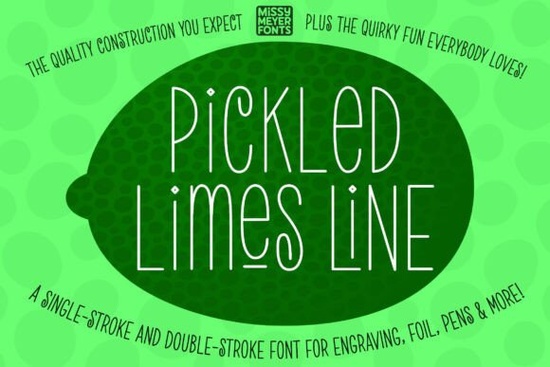
How does a single-line typeface work with cutting and engraving machines?
Most typefaces rely on outlines and filled spaces, which works well for screens and standard printers. Crafting tools, however, depend on continuous drawing paths. Regular fonts force engravers to fill every curve, often leaving messy overlaps or incomplete strokes. This font bypasses that issue by providing a clean, unbroken line that follows the natural movement of a drawing pen or scoring blade. It includes both single-stroke and double-stroke versions, so you can choose based on your software capabilities. The single-stroke file traces quickly in most vector programs, while the double-stroke option adds visual weight without creating solid fills.
Because this design prioritizes drawing tools over traditional publishing, it will not function like a standard word processor font. The letterforms stay narrow and open to keep machine paths efficient. If you are exploring other display options for screen-based layouts, you might also check out alternatives that lean toward bold graphic styles for broader print runs.
Which machines and software setups handle this file best?
Your equipment will run smoothly as long as it accepts vector paths or supports dedicated drawing modes. Common tools that pair well include:
- Sketch pens and fine-liners on digital cutting plotters
- Foil quill tips that require steady, unbroken movement
- Laser engravers and scoring heads for wood or acrylic
- Infusible ink pens for heat-transfer projects
- Any stylus or nib that relies on a continuous line
Software like Illustrator, Inkscape, or Silhouette Studio recognizes these open paths without extra conversion steps. Brother CanvasWorkspace users should note that the platform sometimes struggles with typeable line fonts. The text box might not render correctly, but the workaround is straightforward. Open the included SVG file, which holds the complete character set as ready-to-cut shapes. Drag, scale, and send it directly to your machine. Crafters who mix engraving with layered vinyl work often pair this clean line style with a heavier, block-style display typeface to create visual contrast that stays readable from afar.
What kinds of projects actually benefit from a tall, narrow handwritten style?
The vertical stretch and tight spacing make this typeface highly practical for limited engraving areas. Tall letters pack more character into small spaces, which is why they perform well on personalized jewelry, metal tags, and narrow cutting boards. When working on curved surfaces like tumblers, a continuous line reduces blade chatter and keeps the design sharp. Transparent materials also show cleaner results since there are no solid blocks blocking background textures.
Gift makers and print-on-demand sellers frequently use this style for greeting cards, custom labels, and small batch stationery. The playful handwritten feel adds a personal touch without requiring manual lettering for every order. Running a small shop becomes easier when unbroken text lines mean fewer machine pauses and faster turnaround. You can preview character spacing on the product showcase page before starting a full production run.
How do you prepare the file to avoid common machine errors?
Even the cleanest single-line design causes issues if scaled incorrectly. Always check stroke weight first. Many engraving programs automatically thicken thin paths, causing overlapping lines. Set your line weight to zero or match your drawing tip exactly before sending the job. If gaps appear at letter corners, adjust the corner smoothing in your software. For laser scoring, use lighter power and slower speed to keep the drawn line crisp without burning the material.
Test a single word before running a full layout. This confirms your machine reads open paths correctly and that your stylus stays in contact with the material. Delete unused glyphs before exporting to keep file sizes manageable, and group text elements so they do not shift during placement. You can review the technical structure and usage notes by visiting the Pickled Limes Line Font reference.
Quick checklist before you start your project:
- Verify paths appear as single strokes, not filled shapes.
- Match line weight to your drawing tip or scoring blade.
- Run a test word at your intended speed and power.
- Use the SVG file if your cutting software struggles with live text.
- Group and lock text elements before exporting to your machine controller.
Save your verified spacing and speed settings as a machine preset. This simple step keeps your workflow consistent and helps you move from initial sketch to finished product faster on every new order.
Get Started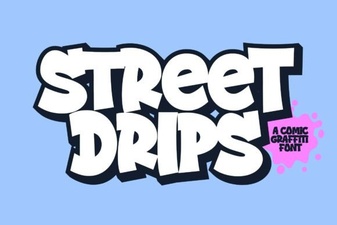 Street Drips Font: Urban Graffiti & Design Projects
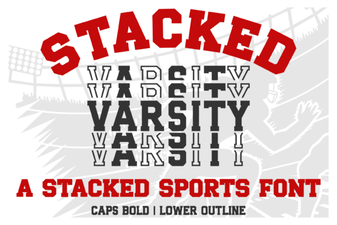 Design with Stacked Varsity Lettering Styles
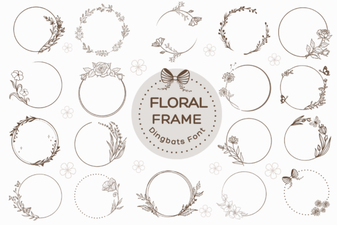 Floral Frame Fonts for Beautiful Invitations and Cards
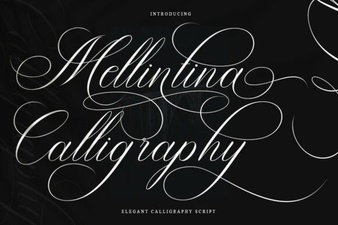 Melintina Calligraphy Font | Elegant Design Ideas & Uses
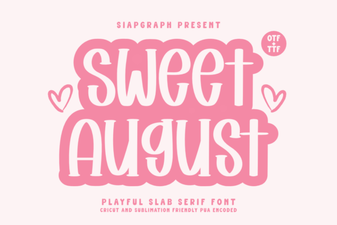 Sweet August Font: a Designer's Guide to Creative Typography
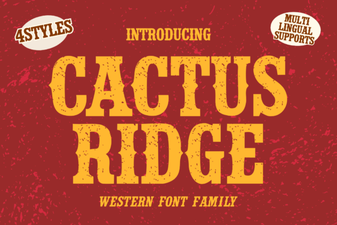 Cactus Ridge Font: Creative Design Ideas & Uses